
The grinding in the official Clash Royale can be brutal. Waiting for days to upgrade a single card? Facing players with Pass Royale who have max-level cards? Yeah, it’s frustrating. That’s why Nulls Royale is so popular. It’s a private server where you get unlimited gems & gold, as well as access to all maxed-out cards.
If you want to play the game on a big screen, save your phone’s battery, and use keyboard shortcuts to drop cards faster than your opponent, you need to play on PC. Since there isn’t a PC version, you can use an Android emulator to run Null’s Royale on PC. In this article, we will guide you through the entire process, step-by-step, so you can start dominating the arena in no time.
Why Null’s Royale on PC?
Sure, the game is designed for mobile, but playing on a PC gives you a massive advantage that touchscreens just can’t match. Here is why:
- By mapping your cards to the keyboard keys, you can choose and drop troops instantly without your fingers blocking the screen while dragging & dropping them on the arena.
- No need to worry about your phone battery, overheating, or finding the charger in the middle of the match. You’re on PC.
- The big screen is an obvious advantage. Seeing the arena on a monitor makes it easier to track both sides of the tower and defend against the split pushes.
What You Need
You don’t need a beast gaming PC to play Nulls Royale. Most mid-range laptops or PC from the last few years will handle it without breaking a sweat. However, since emulators rely heavily on your processor, older dual-core processors’ PC might struggle to keep up.
Hardware:
- RAM: At least 4GB RAM (8GB RAM is better)
- Processor: Any multi-core CPU (Intel or AMD)
Software:
- An Android Emulator: Any Android Emulator like BlueStacks, LDPlayer, MEmu, etc.
- Nulls Royale APK: The latest version APK file of the Nulls Royale game.
Steps to Play Null’s Royale on PC
Don’t worry, guys. You don’t need to be a techy wizard to play Nulls Royale on PC. It actually only takes about five minutes. Just follow the steps below, and you’ll be playing your favorite deck in the arena in no time.
Step 1: Download & Install the Emulator
There are many Android emulators out there, but we suggest you use BlueStacks, which is super user-friendly and has great performance. If you want a lighter emulator, then you can go with NoxPlayer or LDPlayer.
How to Install BlueStacks:
- Go to the official BlueStacks website.
- Download the BlueStacks installer and run it.

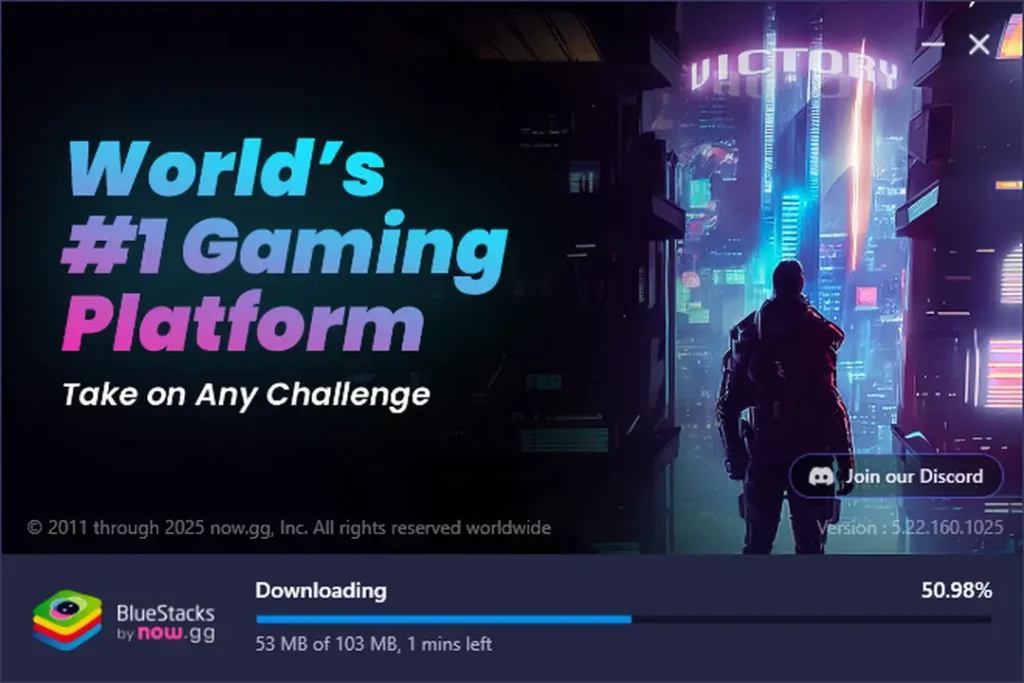
- Then click the “Agree and Install” button and wait for a while while it downloads the necessary files, as shown in the screenshot.
- Once it’s done, launch it.
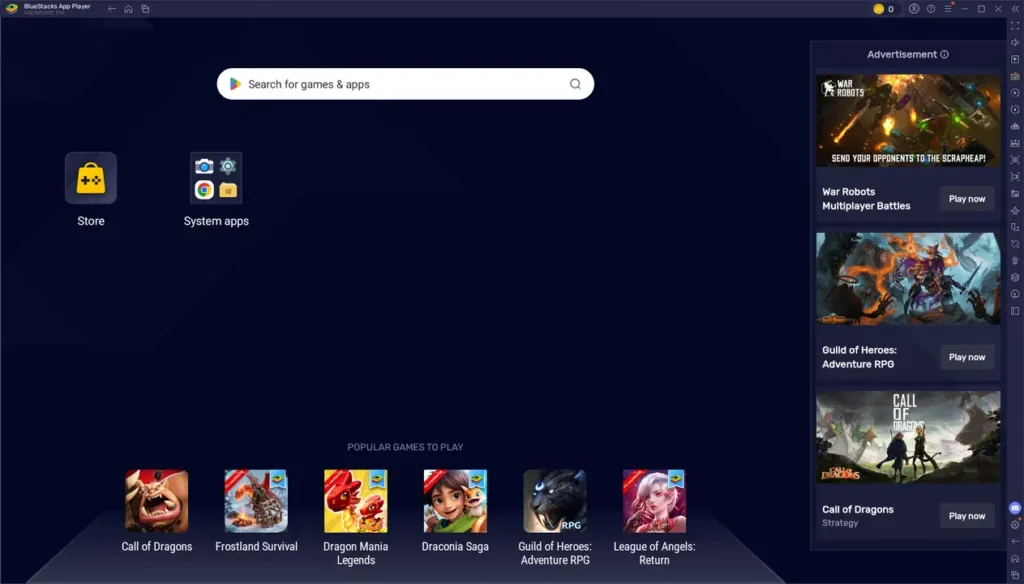
Step 2: Download the Null’s Royale APK
Null’s Royale is a modded application, so it’s not available on the Play Store. You have to download its APK from the web. To do that, follow these steps:
- Open the browser on your PC.
- Go to the NullsRoyale.org website.
- Tap on the Download Now button.
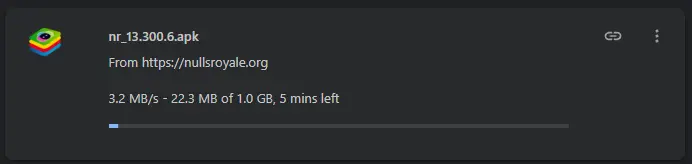
- It will download the Nulls Royale APK on your PC.
Step 3: Install the Game
It’s the easiest part and has three methods. You can use any of the following methods to install the game.
Method 1: The Drag & Drop
- Go to the folder where the APK file is.
- Now click & hold the APK file, then drag & drop it over the opened BlueStacks window. The BlueStacks emulator will automatically install it.
Method 2: The ‘Install APK’ Button
- Look at the right sidebar of the BlueStacks. There you will see an ‘APK’ icon. When you hover the mouse over it, it says ‘Install APK’. Click on it. (Shortcut – Ctrl+Shift+B)
- Now browse to the folder where the Nulls Royale APK is.
- Select the APK file and open it.
Method 3: Double-Click the APK
- Go to the folder where the Nulls Royale APK is saved.
- Then double-click on the APK. It will open & install the game in BlueStacks.
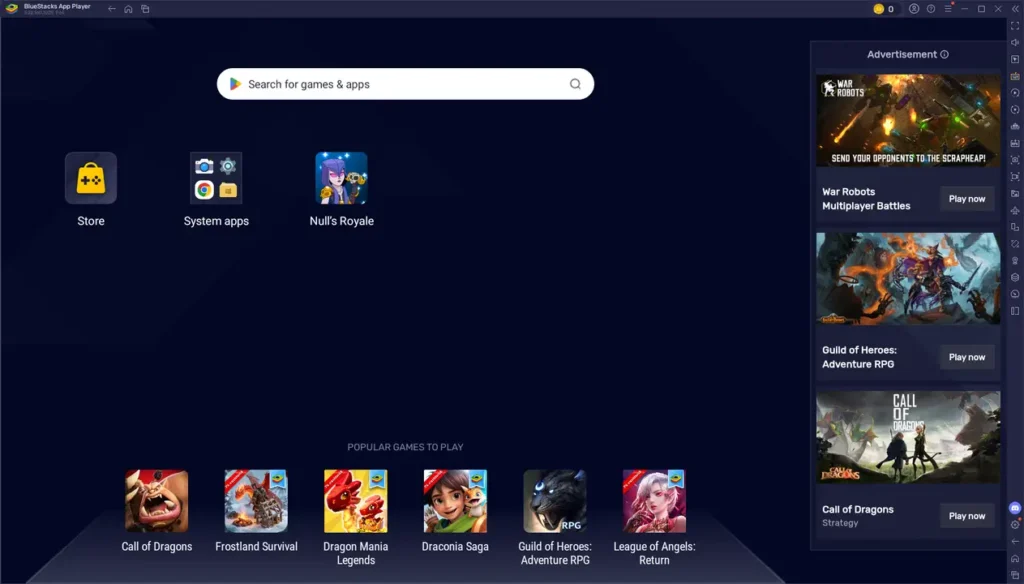
Wait a few seconds and done. The Nulls Royale icon will appear on the home screen and also on the desktop.
Step 4: Launch & Play the Nulls Royale
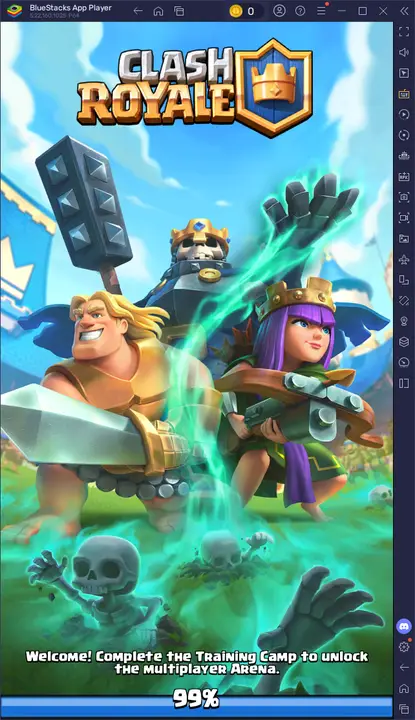
After the installation is completed, you can launch the game by clicking on the Nulls Royale icon shown on the home screen of BlueStacks or on the Desktop.
Step 5: Assign Keyboard Keys for Each Card
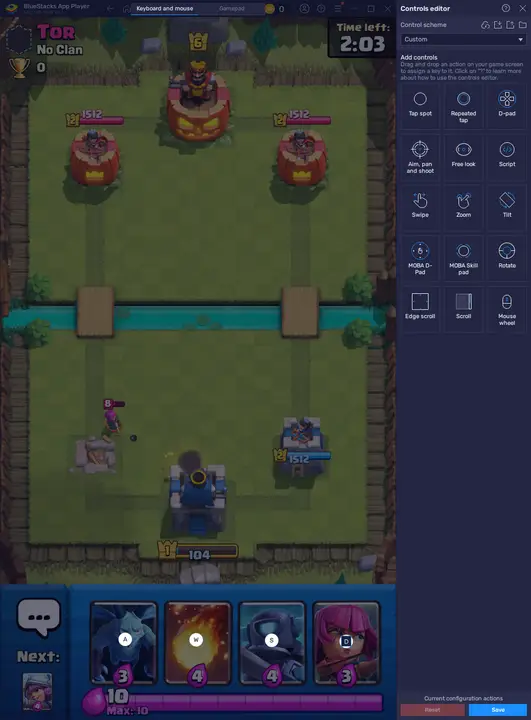
You can play the game using just your mouse, clicking or dragging the cards on the arena. But you’ll be so slow. However, you can assign keys to your cards. This way, you can select troops instantly.
- Start a match.
- Then click on the ‘Game Controls’ option shown on the right sidebar of the emulator.
- After that, open the Controls Editor.
- Now, click on the first card, then press the key you want to assign to that card. (e.g., 1, 2, 3, A, B, Z)
- Repeat the above step for the second, third, and fourth cards.
- Once assigned to all cards, save the settings.
Conclusion
That’s it, my friends. You have successfully installed Nulls Royale on your PC. By following these steps, you’ve unlocked a better way to play with precise controls, no battery issues, and a much clearer view of the arena. Whether you’re experimenting with decks or just looking to relax with unlimited resources, you can do all that on the PC now. Now jump into the arena and enjoy the game.
Frequently-Asked Questions
BlueStacks is the best and most stable emulator to play Nulls Royale on PC. If you feel BlueStacks is laggy and need a lighter emulator, then LDPlayer is the best. It depends on your PC.
When you launch the game for the first time, it always shows the error “unsupported device or emulator”. You just need to click on the “Run Anyway” button. If the error persists, then go to the Emulator Settings >> Phone, and then select a different profile like Samsung Galaxy S22 or OnePlus.
To update the game, you will need the APK of the latest version. Then simply drag & drop it into the emulator, and it will automatically update the game.
Yes, you can. But first, you will need to assign the keyboard keys to each card. You can do that in the Control Editor. Simply open the Editor, then click on the first card, and then assign the keyboard key you want. Once you do it for all cards, save the settings. Then you can press the assigned keyboard keys to select the associated cards.